VLA Pipeline hardware
Goal: identify and connect the two-arm station. Each xArm 7 has its own control box, gripper, and stand; both share the workstation. Set up rig A first, then rig B.
Identify the parts in the labeled photograph.
1. Equipment
Quantities are for the complete two-arm station. Workstation, display, and network equipment are counted once in shared equipment.
| Equipment | Quantity | Product or reference |
|---|---|---|
| UFACTORY xArm 7 robot | 2 | UFACTORY xArm — select xArm 7 |
| Control box with arm cables and power cord | 2 | Control box and supplied cables |
| xArm gripper with mounting and cable set | 2 | UFACTORY grippers |
| 3D-printed gripper finger | 4 (2 per gripper) | Finger STL — lab design, printed in-house |
| Vention arm stand | 2 | Vention design 506323 — account with design access required |
| Work table | 1 | Workbench catalog — size and load rating to specify |
| Meta Quest 3 headset | 2 | Meta Quest 3 |
| Quest Touch Plus controller | 4 (2 per headset) | Touch Plus controllers — usually bundled with the headset |
| AA batteries for the controllers | 1 pack | AA alkaline, 20-pack — one per controller plus spares |
| Headset USB data cable | 2 (1 per headset) | Meta Link cable or an equivalent data-capable cable |
| RealSense D405 wrist camera with USB cable | 2 | D405 · USB cable catalog |
| xArm wrist-camera mount | 2 (1 per D405) | UFACTORY camera stand — includes mounting plate and 2 m USB-C cable |
| RealSense D415 scene camera with USB cable | 3 | D415 · USB cable catalog |
| Articulated scene-camera stand with adjustable camera head | 3 | Models to record — see open items |
| Scene-camera C-clamp and thread adapters | 3 clamps, 1 adapter set | CAMVATE C-clamp · CAMVATE 1/4"–3/8" adapter set |
| Ethernet cable, control box to switch | 2 | Ethernet cable catalog |
| Task tubs, tray, and task objects | 4 tubs, 1 tray, 1 task set | Rubbermaid 7-gallon utility box — black perforated tray model to record; task objects chosen by the project owner |
| Optional soft fingers and grip tape | As needed | Grip tape catalog — task dependent |
| Cable labels, zip ties, and lighting | As needed | Labels · zip ties · work lights |
A first session can run with one headset and its two controllers driving both arms; the full station supports two operators.
Notes on selection
- Arms and control boxes: confirm the power supplies, power cords, and arm cables against UFACTORY's installation guide.
- Stands: the Vention design opens a sign-in page; ask the owner for access. Mount the arm bases per UFACTORY's base-mounting requirements.
- Gripper fingers: print two per gripper from the STL. The part is about 17 × 25 × 62 mm and fits a standard desktop printer bed. Agree on material, infill, and orientation with the owner and check the fit before the first session.
- Wrist cameras: the UFACTORY camera stand is listed for the D435 but fits the D405; it includes a 2 m USB-C cable. Use that cable if it reaches the host with enough slack through the approved arm movement; confirm the route before ordering a replacement or extension.
- Scene cameras: mount each D415 on its articulated stand and adjustable camera head. The linked CAMVATE C-clamp provides threaded attachment points; it does not include a ball head. Match the thread adapters to the delivered stand and head, and position all three stands outside the arms' reach.
- Headsets: keep chargers, spare AA batteries, and data-capable USB cables long enough for the operator with the station kit.
2. Connection map
Workstation · RTX PRO 6000
Ethernet → shared switch/router
- Control box A → supplied arm cables → xArm A
- Control box B → supplied arm cables → xArm B
USB → workstation
- 2 × D405 wrist cameras
- 3 × D415 scene cameras
- Each headset in use
The map shows data connections. Each control box also has a power cord. Identify the delivered control box's ports first, then connect power and arm cables per UFACTORY's instructions, with external AC disconnected while plugging arm cables. Ask the network administrator to place both control boxes and the workstation on the same network.
3. Assemble and connect
- Mount: bolt each arm base to its stand and each gripper to its arm with the approved fasteners. Fit the printed fingers. Check the two arms' overlapping work area.
- Pair and label: label arms, control boxes, and stop buttons A and B. Connect each arm's power and communication cables to its own box.
- Network: connect both control boxes and the workstation to the switch/router.
- Cameras: mount one D405 per wrist and the three D415s on their stands. Label both ends of each USB cable with the camera position, then connect them to the workstation.
- Headsets: connect each headset in use with a data-capable USB cable. Keep its two controllers with it.
- Inspect: have the installer check connections and cable clearance before power-on. Photograph the ports and labels for the setup notes.
A first test can use rig A's wrist and scene views alone; add the remaining cameras as the station is validated. Identify the controller buttons the operator will name during checks:
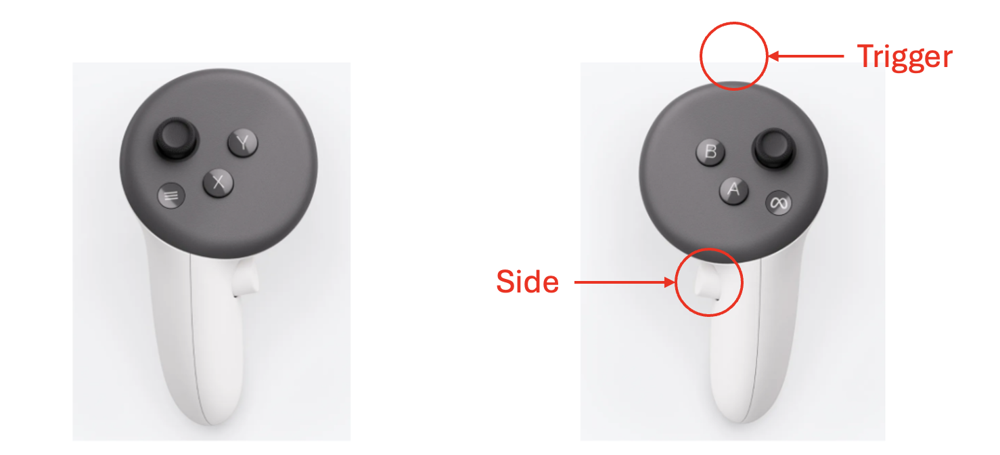
Left controller: X/Y buttons. Right controller: A/B buttons, trigger (front), and grip (side). The red callouts mark the trigger and grip positions.
4. Record identities
Keep separate records for rig A and rig B. Rig labels describe a device's role; its serial identifies the physical unit. Do not infer rig identity from left/right position in a photograph, and keep network addresses in the private setup notes.
| Item | What to record |
|---|---|
| Arm and control box | Model, serial, network address, and matching stop button |
| Headset and controllers | Device identities, arm assignment, and whether one headset controls both arms |
| Wrist cameras | Serial and assigned arm |
| Scene cameras | Serial, stand position, and intended view |
| Network | Cable labels and assigned addresses |
Ask the operator to demonstrate stopping, restoring power, and returning to the home position for each rig before any two-arm session. The lab's home angles must be checked against the actual mounting before the first reset.
Next: Basic software